Calendar events and project scheduling.
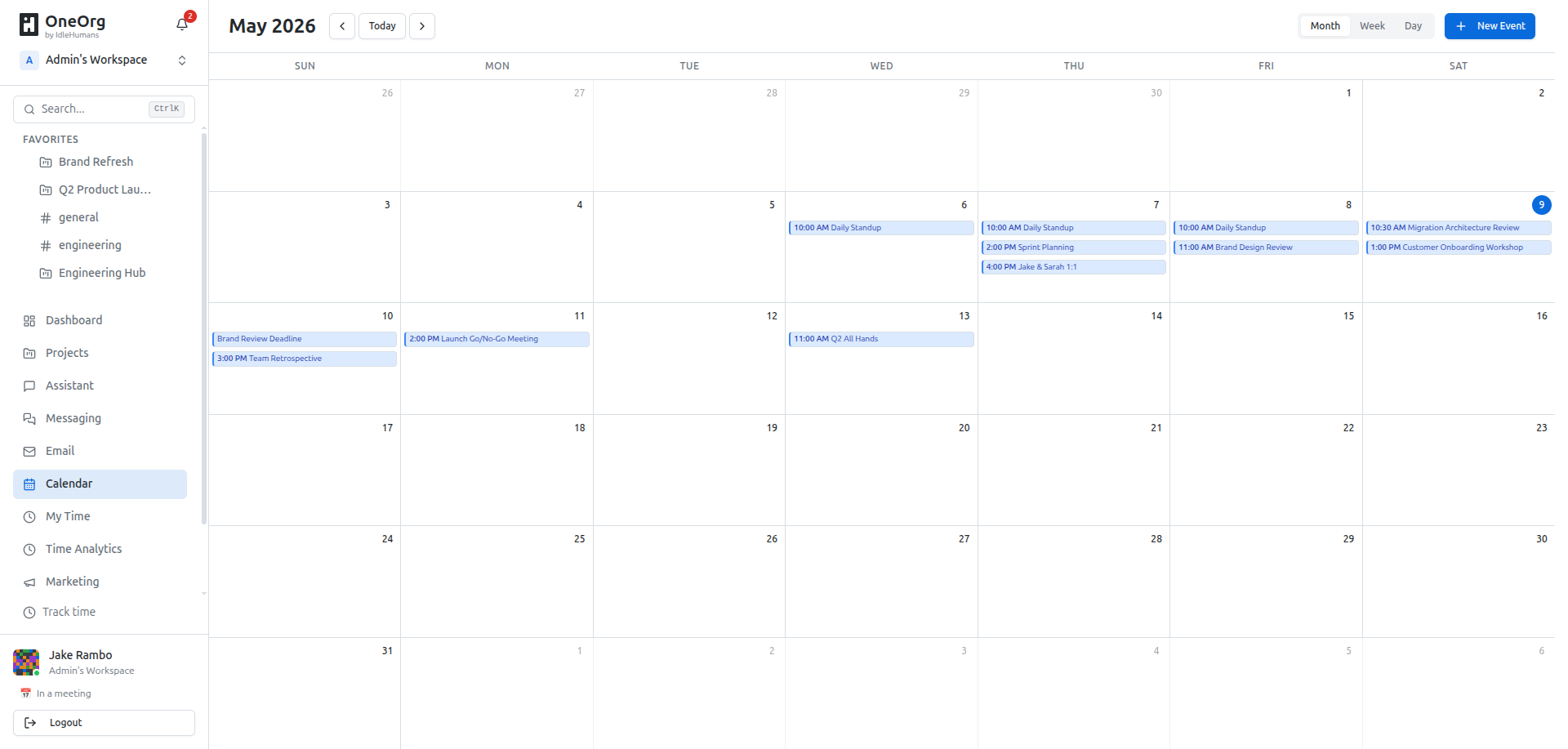
OneOrg includes a built-in calendar for organizing meetings, milestones, and deadlines across your workspace. You can create events, invite teammates, and see task due dates alongside your scheduled time in month, week, and day views.
How to create and manage events
Open the Calendar from your workspace navigation. You can switch between:
- Month view: overview of the entire month.
- Week view: day-by-day breakdown.
- Day view: detailed schedule for a single day.
To add an event:
- Click New Event.
- Enter a title and set the start and end time.
- Optionally enable all-day, add a location or description, and invite attendees by searching workspace members.
- Save the event.
When you click an event in the calendar, a detail panel opens where you can:
- View attendees and their RSVP status.
- Edit or delete the event.
- Respond with your availability if you are an attendee.
Events can be scoped to the entire organization or linked to a specific project.
OneOrg also displays task due dates on the calendar. Clicking a task due date takes you directly to that task in its project.
How to use the calendar with your team
Use the OneOrg calendar when:
- You need shared visibility of meetings and key dates.
- You are planning project milestones or release events.
- You want to align task deadlines with your team's schedule.
Invite relevant members when creating an event so everyone can confirm their availability. The calendar works as a local workspace tool by default. If your organization configures external calendar providers, some events can sync with them as well.
Use the calendar for deadlines, reviews, and external commitments, not for every micro-task. Create events that represent decisions or milestones, and invite only those who must act. Before each event, confirm the context: what documents, tasks, or channels are relevant? After the event, add the outcome to the correct project channel so the decision stays visible. Avoid using the calendar as a personal to-do list when project tasks already capture that work. If the calendar is overloaded, split events by project and audience; that keeps it readable and actionable.
A good calendar policy keeps events meaningful and searchable. Require a clear title, invitee list, and a brief agenda for recurring events. Use reminders sparingly: for critical deadlines and reviews, not for every minor meeting. If people treat the calendar as noise, switch back to project channels and tasks for that work. A calendar that people actually trust is more valuable than a calendar that is technically complete but ignored.
A useful calendar habit is to treat each event as an action request, not just a time slot. Before creating an event, confirm: is this required for someone’s work, or is it optional visibility? Invite only people who must act, and provide a short agenda so participants know what decision is expected. After the event, add the outcome to the relevant project channel or task. This keeps the calendar aligned with real work, reduces fatigue, and makes it easier to justify future scheduling choices.
Use a simple calendar rule: if an event does not have a clear owner, agenda, and required decision, treat it as optional visibility instead of a formal meeting. Invite only people who must act, and share a short agenda before the event. After the event, add the decision to the relevant project channel or task. That keeps the calendar from becoming a noisy schedule and makes it a reliable coordination tool the team can trust.
Treat the calendar as a coordination tool the team depends on. Before you schedule, confirm: is this required for the work, and do the right people know what decision is expected? Keep agendas short, invite only those who must act, and record the outcome in the correct project channel. Avoid using the calendar for personal reminders or vague “sync” sessions. A focused calendar reduces noise and makes it easier to spot real conflicts, deadlines, and capacity issues.
Related entries
- Project workspaces in OneOrg
- Huddles for voice and video collaboration
- Automations and workflow triggers
- project-workspaces-oneorg
- project-time-team-analytics
- notification-preferences-alert-management