Activity logs for project and organization.
OneOrg keeps a searchable record of what happened in your organization and in each project, so you can review actions, spot unusual patterns, and understand usage across tools and people.
Keep track of what changes
Use the organization activity log to see who did what, when, and where. It covers actions like:
- Creating, editing, or deleting projects, channels, skills, and agents
- Inviting, removing, or changing roles for team members
- Logging in and logging out
- Sending or failing AI messages
- Connecting or removing integrations
- Sending email campaigns
The log is not just a list. You can filter by:
- Category, for example authentication, AI usage, or members
- Specific user
- Time range, using All Time, 7 days, 30 days, or 90 days
- Quick filters like AI Messages, Errors, or Model Switches
- Free text search across events
When something looks unusual, open an individual event to see details like IP address and extra metadata in a slide-out panel. You can export the log to CSV for audits or internal reviews.
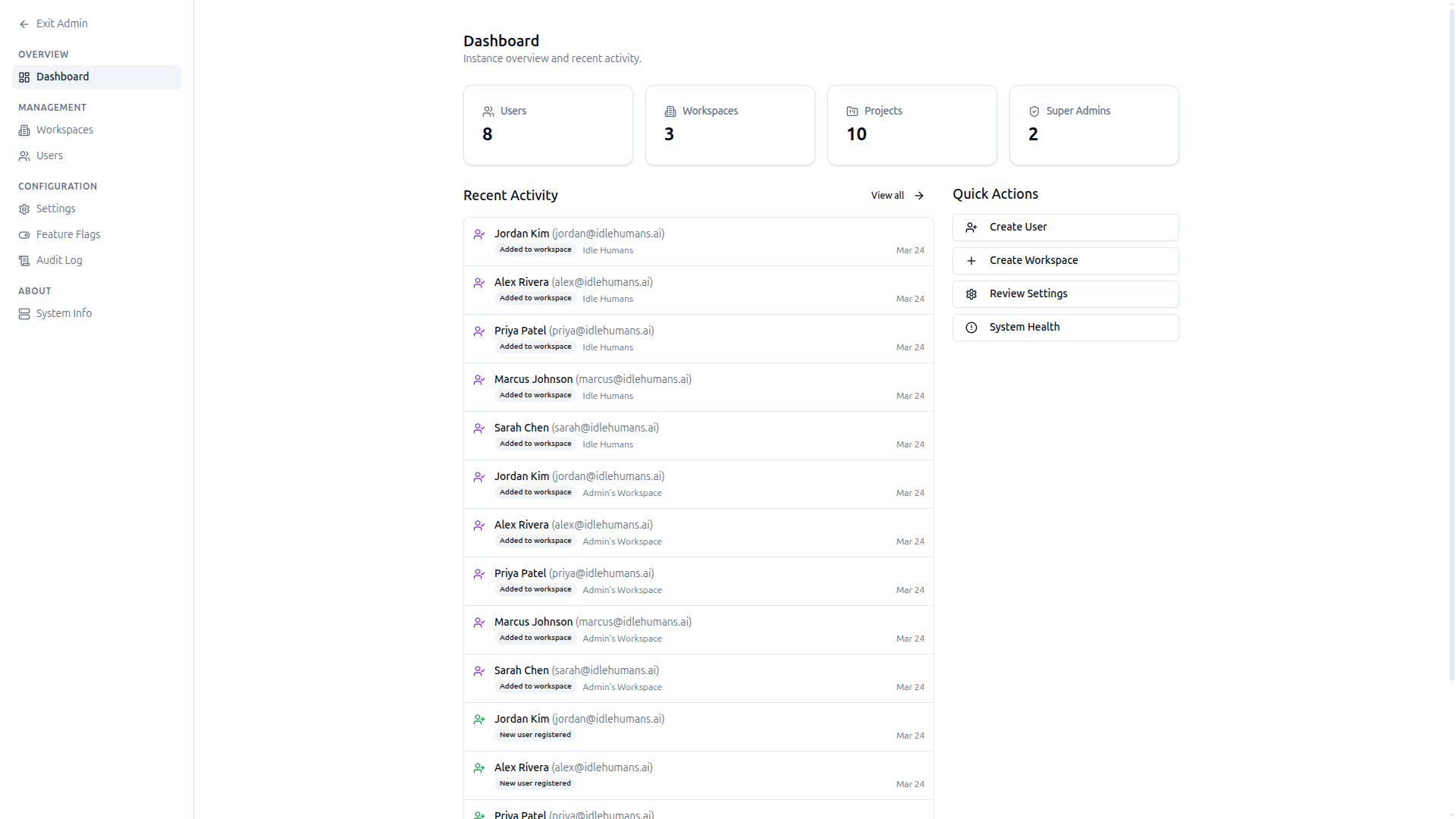
If you need the same view scoped to a single project, open that project's Recent Activity. It shows all activity events tied to that project in a simple timeline.
At the platform level, admins can use the Audit Log page to view activity across all organizations, filtered by category and paginated for large volumes.
Use alerts to spot problems before they grow
OneOrg uses the activity log to detect patterns that might need attention and surfaces them on the Activity Log page:
- Login Failures: repeated failed sign-in attempts, with affected users listed
- Volume Spikes: a user sending far more messages than usual
- Off-Hours Usage: activity outside normal working hours
- Cost Anomalies: a user's daily cost jumping above typical levels
- Org Spend Spike: overall daily spend compared with the average
- New Models: newly used AI models
- Error Rate: high ratio of failed events to total events
These alerts help admins see when something needs a conversation: an unusual login, an out-of-control AI model, or someone running expensive queries off hours.
Use the alerts as early warning, not as a final decision. If an alert fires, check the underlying events in the activity log to understand the context.
Fit for audits and governance
Use the activity log when:
- You are subject to internal audits or security reviews
- You need to prove who changed or deleted something
- You are investigating unauthorized access or suspicious behavior
- You are reviewing AI usage and cost patterns
Do not rely solely on memory or chat messages when decisions or access changes are important. The activity log is the source of truth for what OneOrg recorded.
Keep the log in mind when you set permissions, create automations, or connect integrations. Every change shows up, which is helpful if someone later asks, "When did this happen?"
Use activity logs for governance and transparency. Enable them early, review them periodically, and treat them as a durable audit trail. Use them to detect unusual changes, track configuration drift, and confirm compliance after major incidents. Do not use them for micromanagement. A good approach: define which events must be logged, who can review them, and how often they should be checked. Pair activity logs with role management: only trusted roles should be able to view or export sensitive logs. Review log retention and access rules annually, because what was reasonable last year may not be safe this year.